Overview
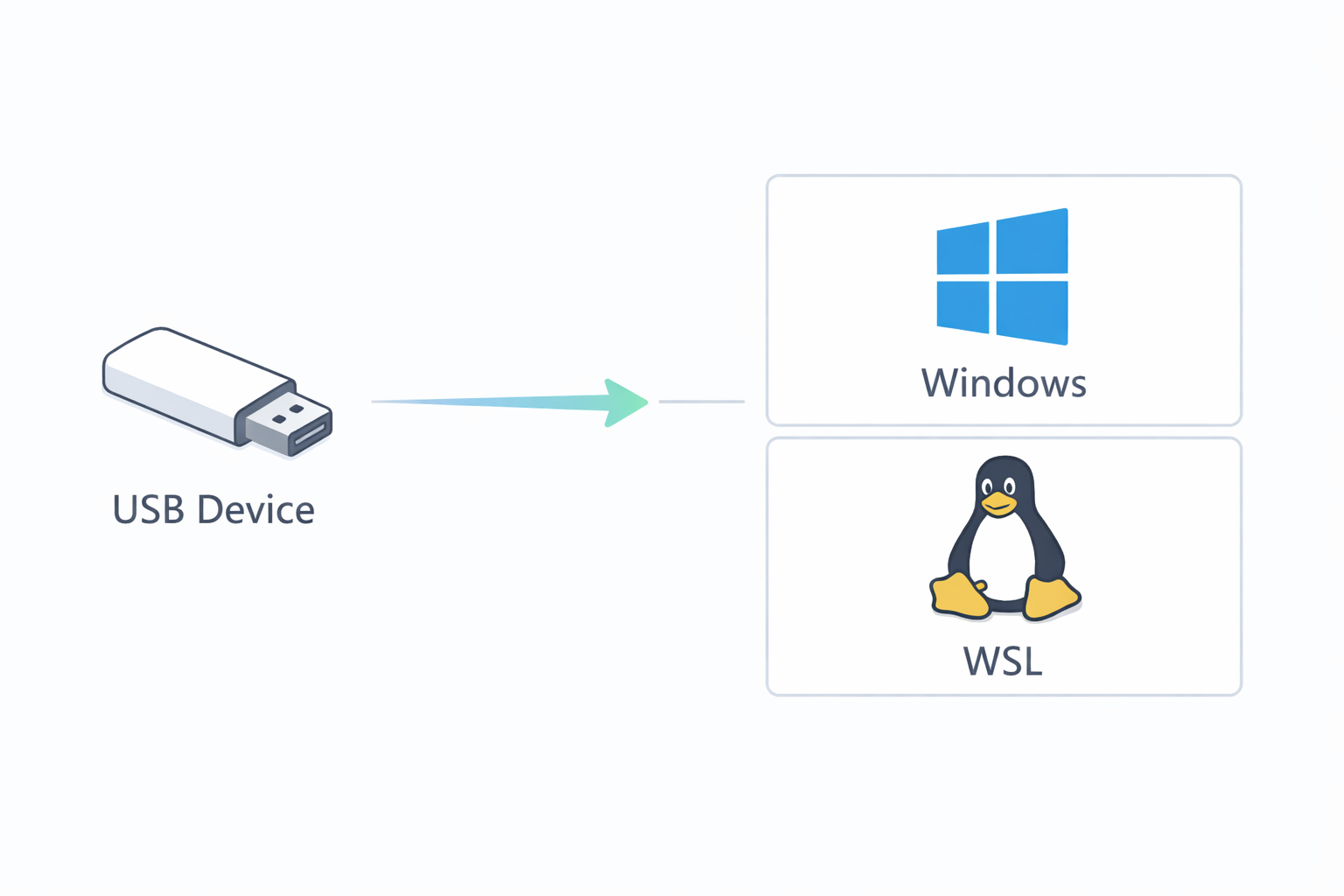
- Turn your USB devices into a TCP-connected “internet” device
- Share the device between Windows and Linux (Windows Subsystem for Linux)
- Optional: Use a GUI program which creates auto-connection profiles and monitors your USB connections
Tools
USBIPD-Win
Source: https://github.com/dorssel/usbipd-win
Microsoft Documentation https://learn.microsoft.com/en-us/windows/wsl/connect-usb
winget install usbipd
Alternatively, grab the .msi file from: https://github.com/dorssel/usbipd-win/releases/latest
WSL-USB Manager
Grab the latest release from: https://gitlab.com/alelec/wsl-usb-gui/-/releases
Packages to install within WSL
usbipd-win allows for USB devices to be shared. We still need to add packages on the WSL side to receive this shared USB connection.
# Within WSL

sudo apt install linux-tools-common usbutils
If you try to attach a device without having the required packages, you may see the following error.

Usage
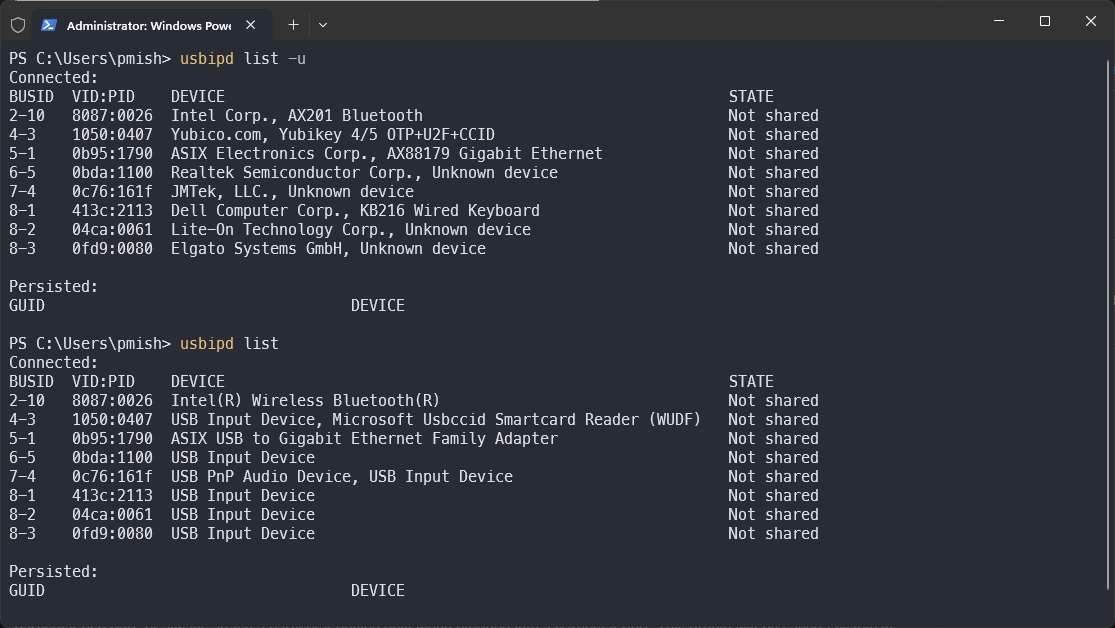
Listing USB Devices
# List USB devices with friendly names
usbipd list -u

# List USB devices hardware controller names
usbipd list
Prior to any initial configuration or profile setup, the wslipd command line and WSL USB Manager program show the devices, with no forwarded connections.
Using WSL USB Manager
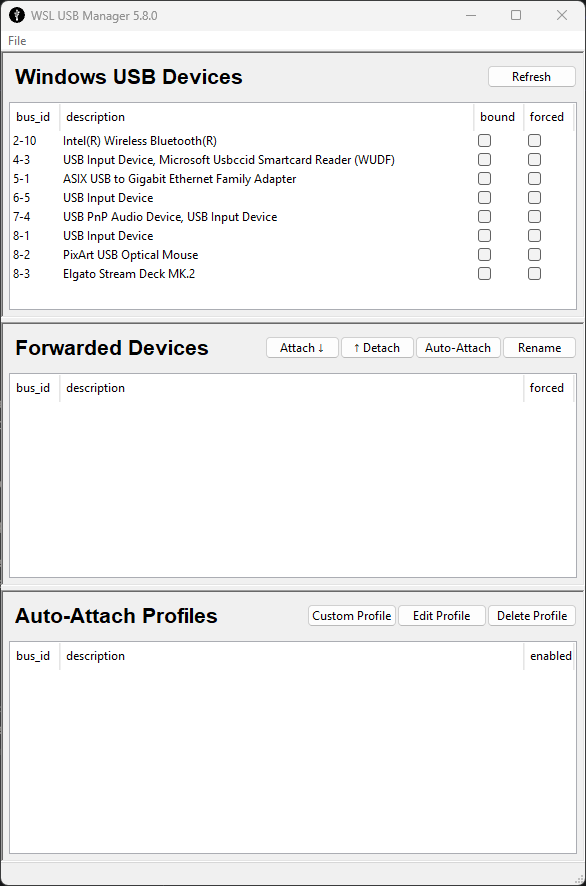
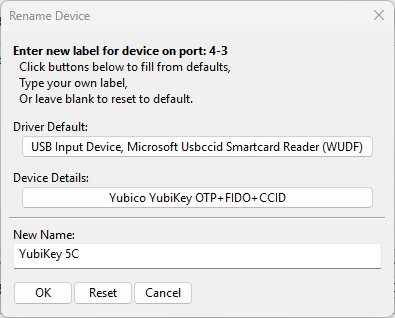
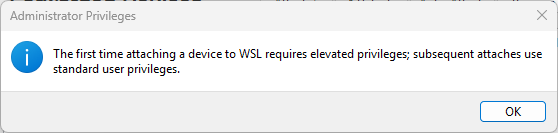
The first time you pass through a USB device, WSL USB Manager will require administrative privileges. You will need to accept the Windows UAC dialogue which opens.
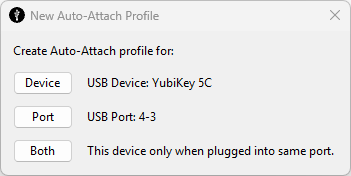
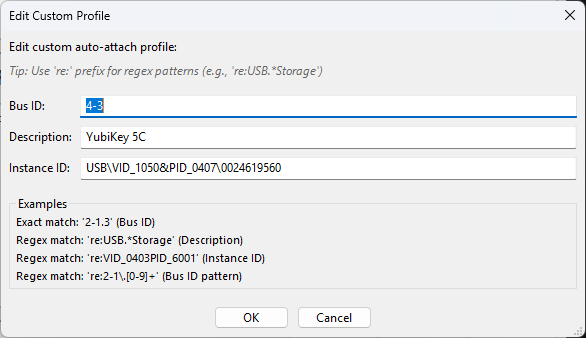
Create an auto-attach profile with WSL USB Manager
Using the command line
First, open a WSL terminal so that the Linux virtual machine is running in the background. Then open a standard PowerShell window (not elevated), and provide the following command to attach a particular USB device. Then, verify that the device is present using the command lsusb.
# Attach the USB device to WSL
usbipd attach --wsl --busid <YOUR_DEVICE_BUS_ID>
# Verify the device is present in WSL by listing the USB devices
lsusb
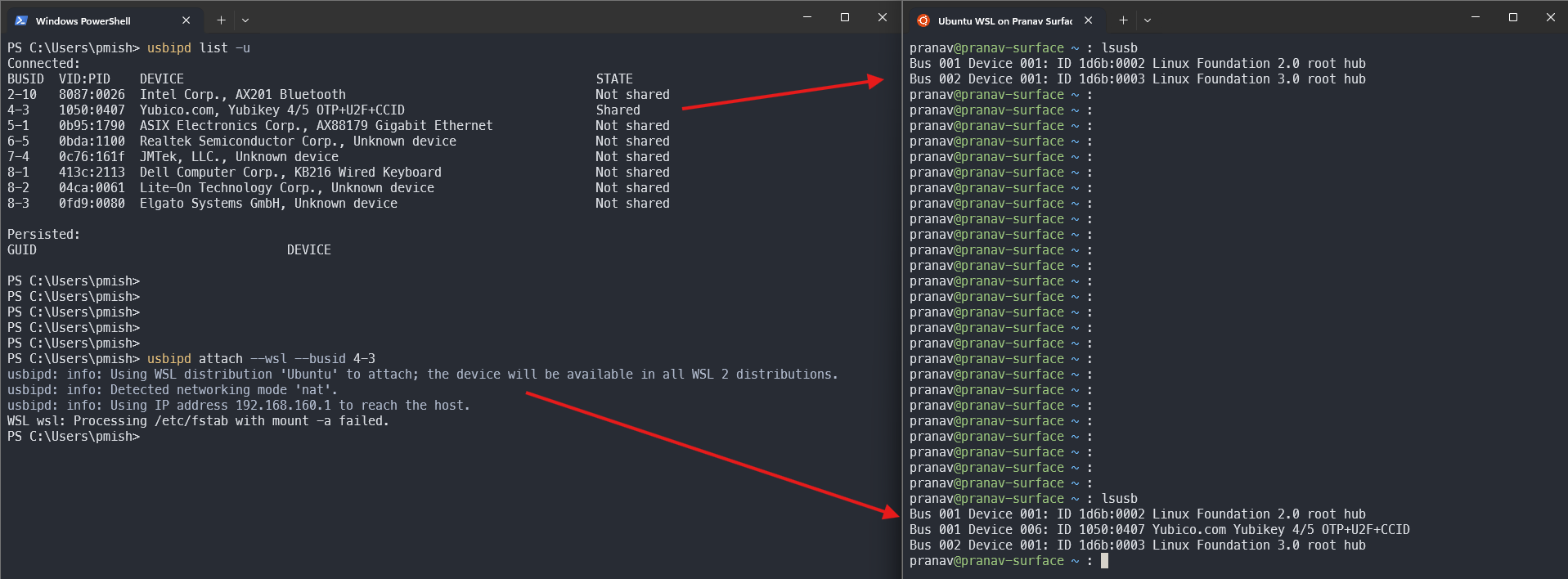
usbipd attach --wsl --busid 4-3 command, the YubiKey is detected within WSL.Further reading
- USB-IPD Win Wiki: https://github.com/dorssel/usbipd-win/wiki
- Known working devices: https://github.com/dorssel/usbipd-win/wiki/Tested-Devices
- WSL USB Manager readme: https://gitlab.com/alelec/wsl-usb-gui/-/blob/main/README.md